
Our Mobile App
How to view lessons on your phone or tablet
The Thinkific Mobile app allows you to access your courses or communities from anywhere. Scroll lower for instructions and a video demonstrating how to install the app.
PDF with instructions on how to download and use the app: Thinkific App How to Install, Use.pdf
CLICK HERE for more detailed information on how to use the app
CLICK HERE for answers to Frequently Asked Questions
Make sure that your device adheres to the operating system requirements for the app: CLICK HERE to learn more.
First, go to your App Store:
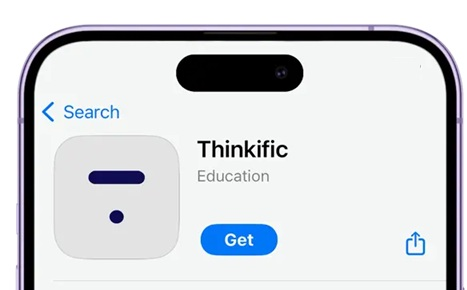
In the App Store search, type "Thinkific" It will look something like this:
After installing the Thinkific app...
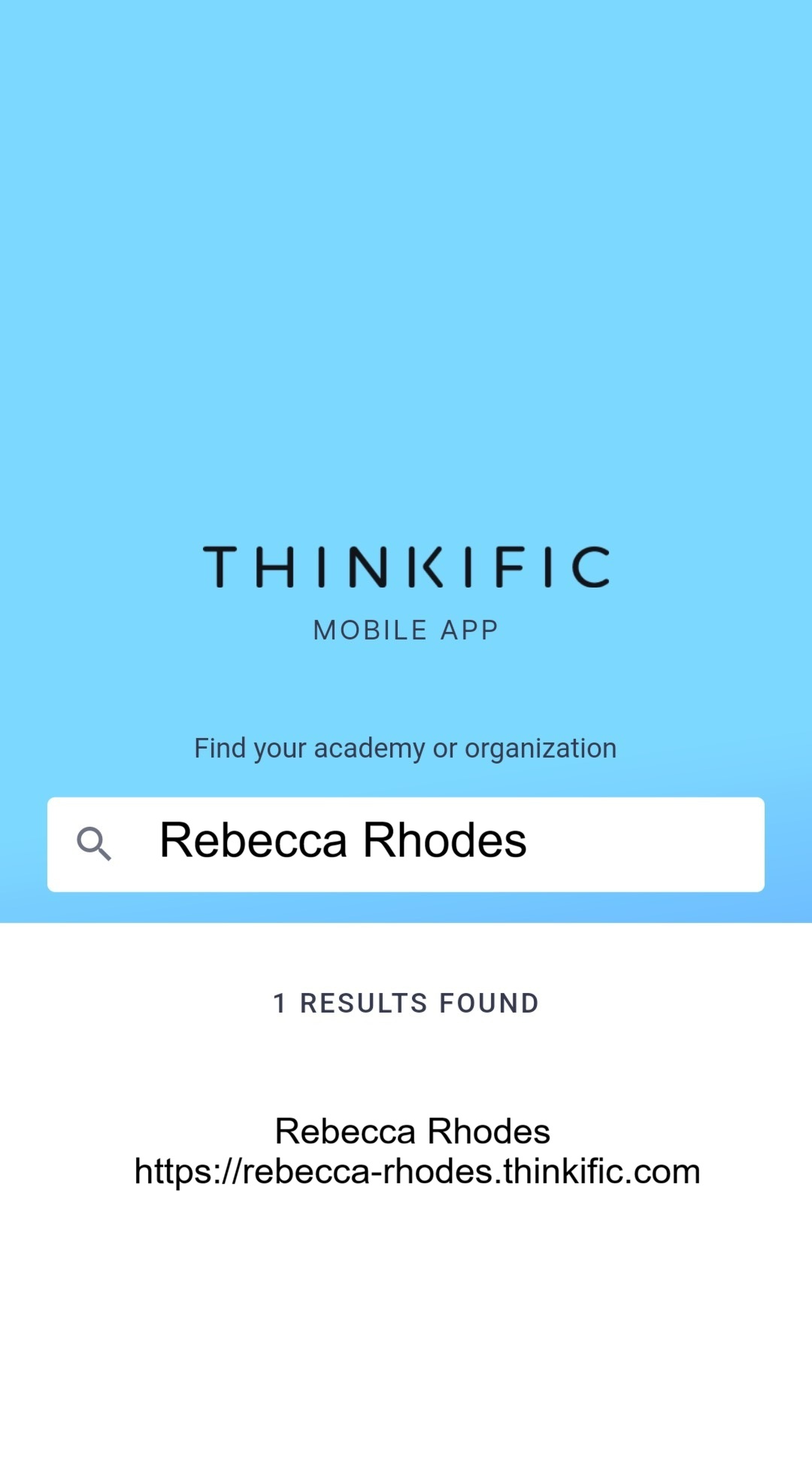
Select the school. A screen will appear, where you can log into our school.
After logging in, you can view your tutorials and watch your lessons. I invite you to take a look, and I'd love to know what you think!
Learn more on how to do use the app here: Getting Started With the Mobile App (Student Resource).
A brief video demonstrating how to install the Thinkific Mobile app
Home
After logging in, you will see your home screen. At the top of this screen, you will see the name of our school and your profile icon (on the top right-hand side).
At the bottom of your home screen, you might see these tabs:
To access notifications, select the bell icon in the header of the Mobile app. The red dot indicates new unread notifications.
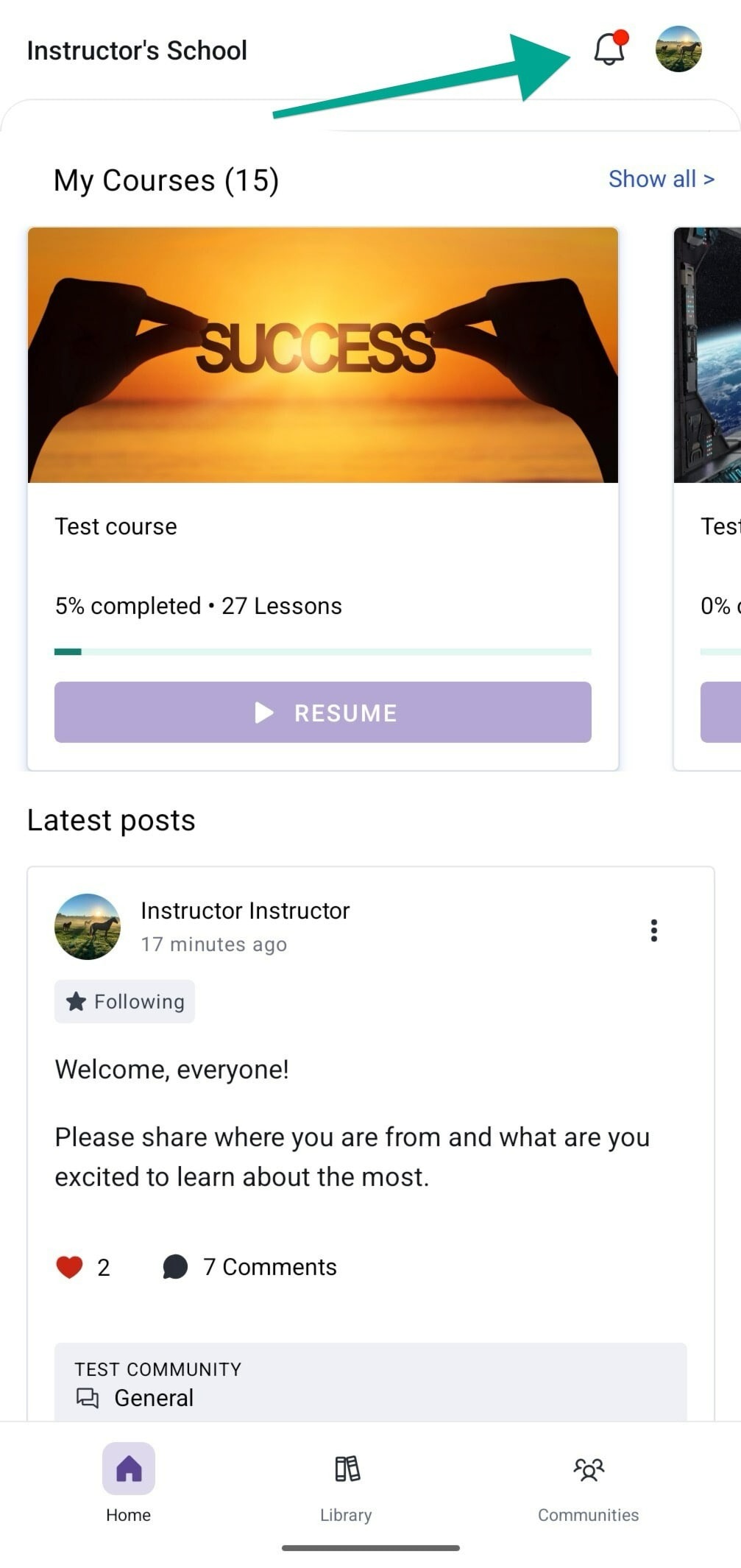
In the top right-hand corner of your home screen, you'll find your profile icon. Click this icon to:
It will look something like this...
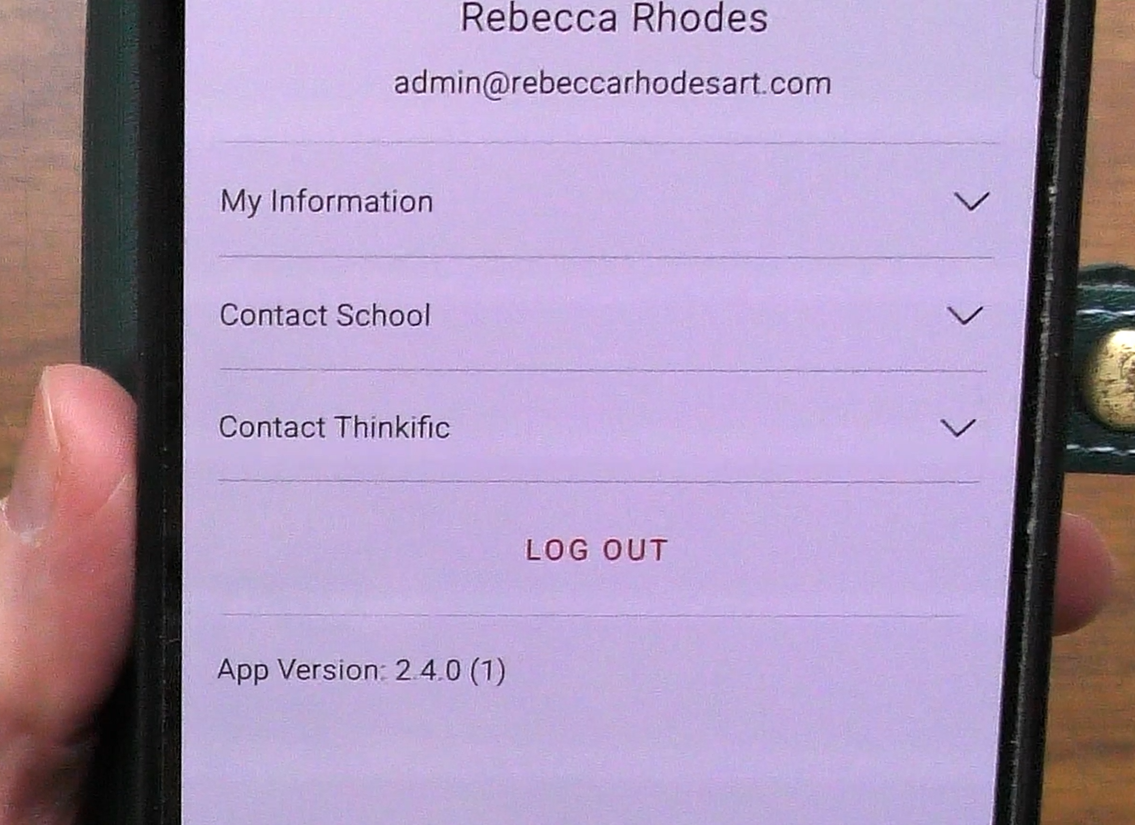
If you need to contact support, you will need to know the version number of the Mobile App you are running. This information can be found by opening your profile on the Mobile App and scrolling to the bottom of the page.
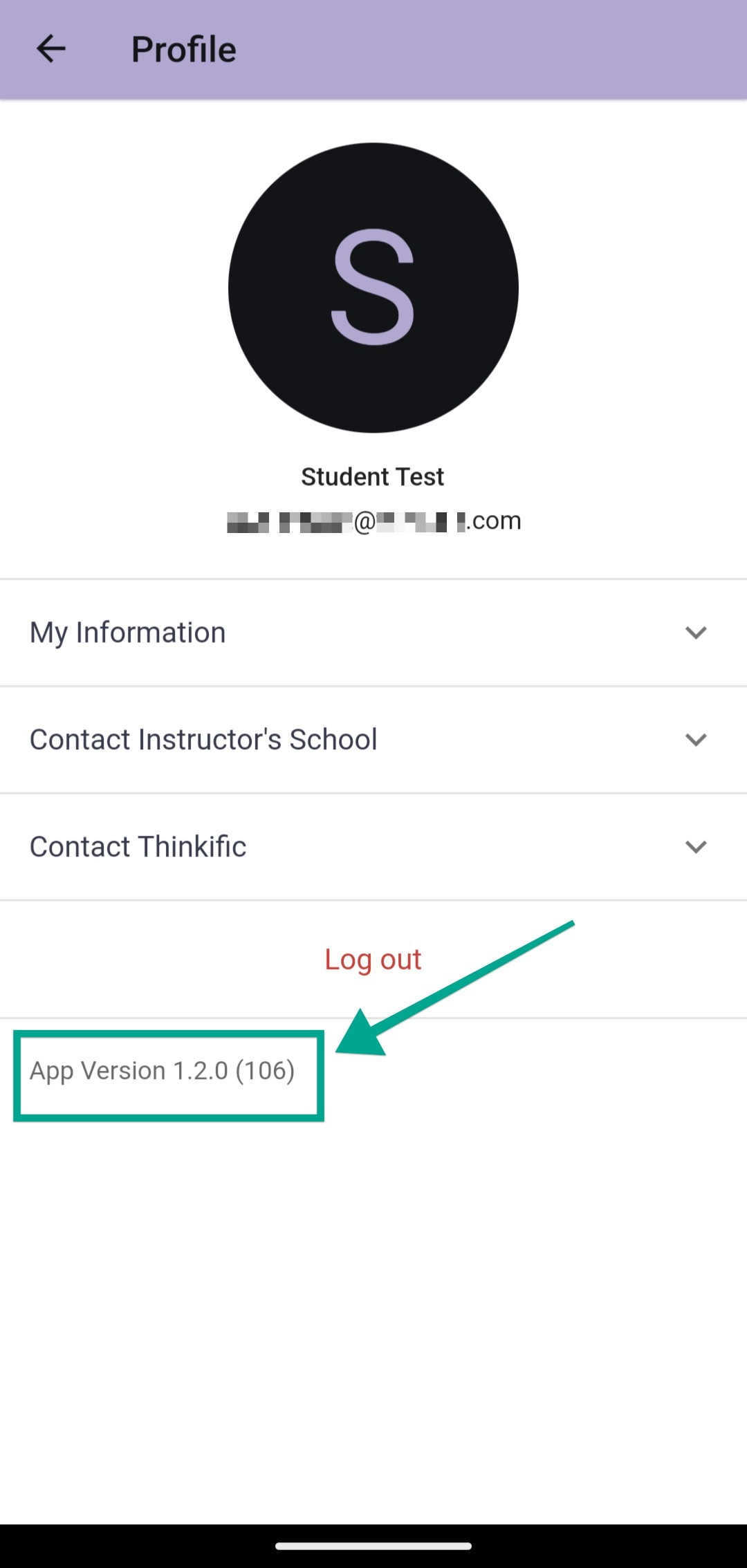
See this article to learn how to update your app: How Can I Update the Thinkific Mobile App? (Student Resource).
If you need assistance, reach out to Rebecca Rhodes at [email protected].