Your Email, Password

Forgot Your Password

If you can't login because you don't know your password (it's ok 😊) here is how to reset it.

  1. Click Sign in on the upper menu of our school
  2. Click Forgot password
  3. Input your email address
  4. Click Submit


How to Change your Password

You can reset your password from your My Account page:

  1. Login to our school
  2. Click your avatar in the top-right header
  3. Click My Account
  4. Select Password on the left menu
  5. Input your new password under Change Password and Retype your Password
  6. Input original password under Current Password
  7. Click Update


How to Change your Login Email

  1. Login to our school
  2. Click on your name in the top right header
  3. Click My Account
  4. Input your desired email under Email
  5. Click Save Changes


After updating your email, you will be asked to input a one-time password sent to your new email address to verify the new email. 


iPad, iPhone

If you are viewing our lessons on an iPhone or iPad, it may be helpful to use our app.

HOW TO INSTALL THE FREE MOBILE APP

First, go to your App Store: 


In the App Store search, type "Thinkific" It will look something like this:
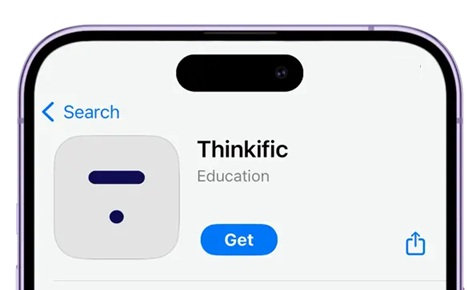

After installing the Thinkific app...
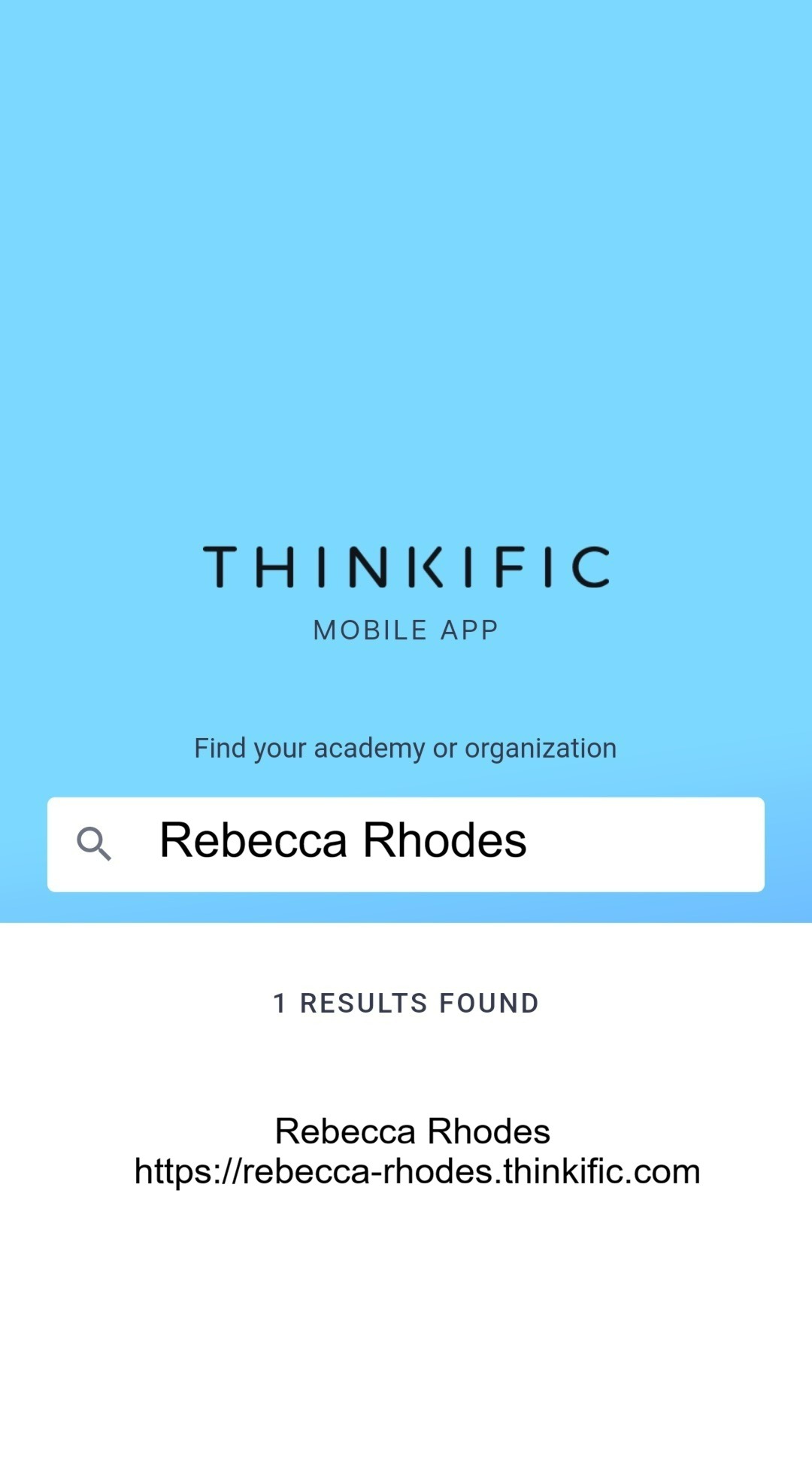
  1. Open the app on your device
  2. In the search bar, type in the name of our school. The name is "Rebecca Rhodes."
  3. Click enter
  4. In the list of results, you will see "Rebecca Rhodes" and the address of our school. 

Select the school. A screen will appear, where you can log into our school. 

After logging in, you can view your tutorials and watch your lessons. I invite you to take a look, and I'd love to know what you think!

CLICK HERE TO LEARN MORE


Billing, Credit Card

How to Change or Delete your Credit Card

To update the card that you use for payment...

  1. Click on your name or picture in the top right of our school header and select My Account.
  2. Select the Billing tab.
  3. Click Edit next to your saved Credit Card
  4. On the next screen, you will fill out the details of your new card and click Update.


From this page, you can also Delete your saved card. This will cancel any recurring payments (i.e. payment plans).


Your Membership Subscription

How to Cancel my Membership

  1. Click on your name in the upper right of our school page.
  2. Click My Account, then click Billing
  3. Under Subscriptions, you can cancel your membership subscription. You will automatically lose access to the content at the end of your billing period.


How to Upgrade from Monthly to Annual (or vice-versa)

  1. Click on your name in the upper right of our school page.
  2. Cancel your present membership so you won't be billed for both subscriptions. 
  3. Purchase the new membership on the Membership page.


What is Included in the Membership?

  • Membership provides full access to all tutorials in our watercolor school for the length of your subscription. 
  • $20 USD monthly/30 days
  • $192 USD annual/365 days

Does the Membership automatically renew?

Yes. Your subscription will automatically renew monthly or annually (depending on what you chose,) until you cancel the subscription.

How do I enroll in the Membership?

  • Go to the Membership page. 
  • Under "Pricing," select $20/month or $192/year, then click "Get Started Now." 
  • You will be taken to the page to make your payment.


Technical Troubleshooting (Computer)

At times, when something isn't working, it could be that your device is confused. Here are some common technical issues and how to solve them. Always feel free to reach out to Rebecca at [email protected]. She will be happy to assist!

  1. Refresh the Web Page: As basic as it sounds, sometimes it helps to simply refresh the web page.
  2. If on Mobile, Switch to a Computer - see if a computer solves the issue.
  3. Restart Your Device: Often, the device becomes "confused," and restarting solves the issue.
  4. Try a New Web Browser: We recommend using an updated version of Chrome or Firefox. If you are using Internet Explorer as a default browser, change to Google Chrome. 
  5. Clear Your Cache: Clearing your web browser’s cache may help resolve issues on your school’s website. upload speed.


If you are still having problems, contact Rebecca at [email protected]. We will find a solution!